Screenshots
Splash Screen
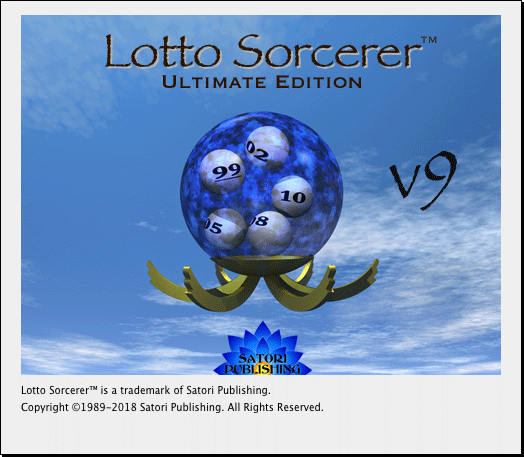
Figure 1.
This is the "Splash", or starting window, of Lotto Sorcerer v9.
Main Window
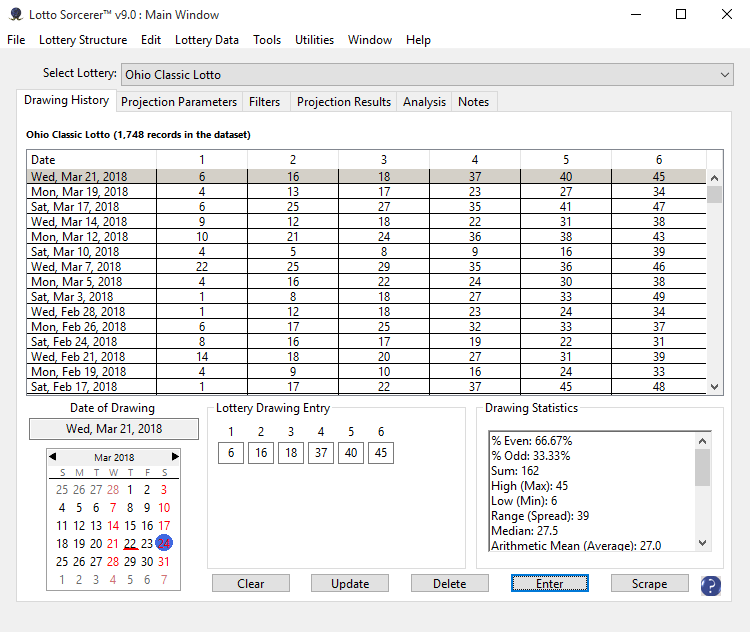
Figure 2.
This is the "Main" window of Lotto Sorcerer. This "Drawing History" tab is where you enter past drawings into Lotto Sorcerer's internal database. [Windows 10 screenshot]
In the Calendar (lower left), the underlined date shows the current date; the dates that are in red typeface show the dates that the lottery holds drawings. The date highlighted with a blue circle is the date for which the next drawing occurs (or the date of the currently edited entry).
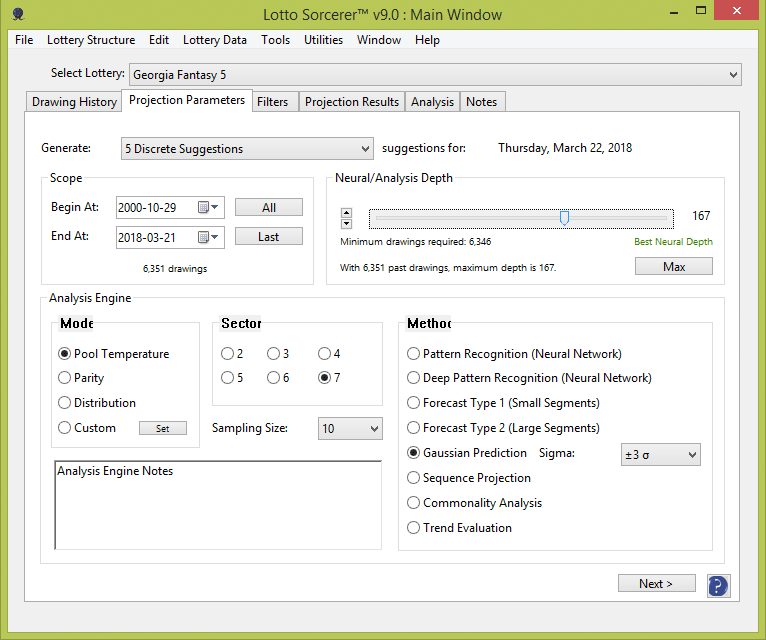
Figure 3.
Again, this is the "Main" window of Lotto Sorcerer. This "Projection Parameters" tab is where you enter the parameters for determining recommended numbers to play. [Windows 8.1 screenshot]
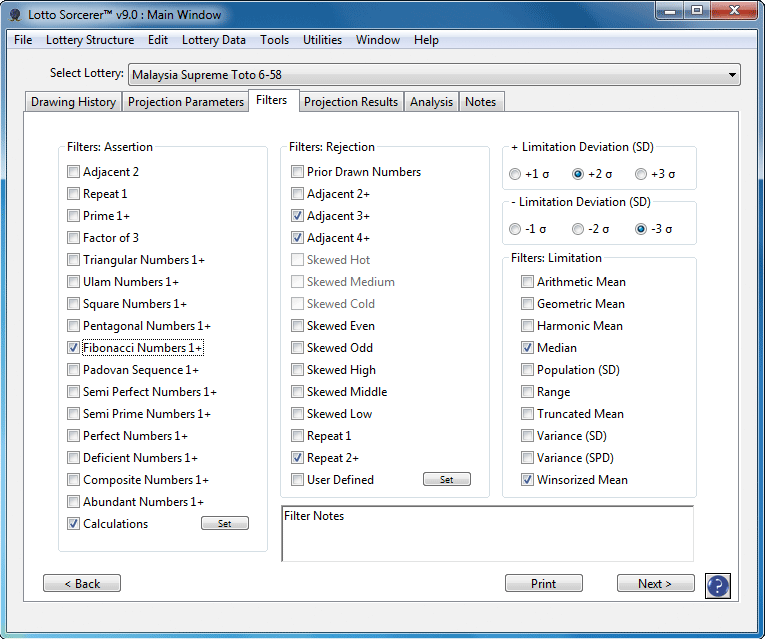
Figure 4.
This is the "Main" window of Lotto Sorcerer, Filters tab. Use this to fine-tune the suggestions that Lotto Sorcerer generates. [Windows 7 screenshot]
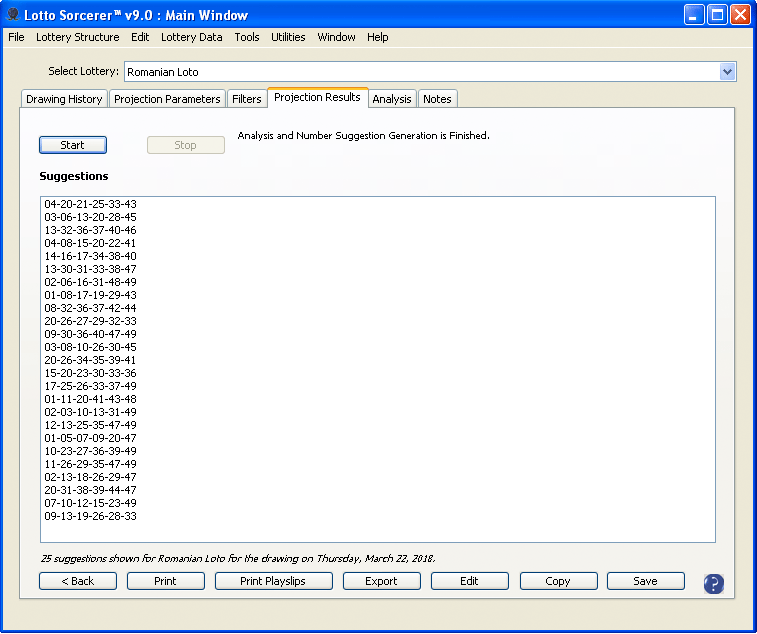
Figure 5.
This is the "Projections Results" tab, where Lotto Sorcerer will generate suggestions for you to play, based upon its analysis of the past drawings of the lottery you are playing. [Windows XP screenshot]
The Start button commences the suggestion process. The Copy button copies the suggestions into your computer's system Clipboard. The Save button saves the suggestions as a text file. The Print Suggestions prints out the suggestions as a list, and the Print Playslips prints the suggestions onto a lottery playslip.
Lottery Setup Wizard
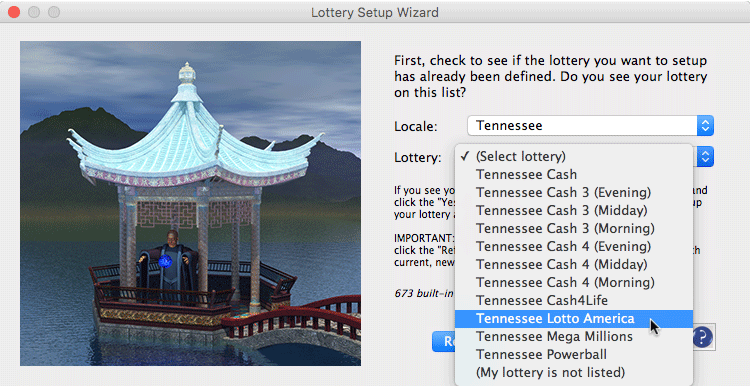
Figure 6.
This is the Lottery Setup Wizard. If you want Lotto Sorcerer to handle your lottery, you must set it up using this function. You can invoke the Lottery Setup Wizard by using Lotto Sorcerer's menu item "Lottery Structure > Lottery Setup Wizard". Even though there are 600+ lottery presets, you can easily setup a lottery that is not on the list by setting up a "custom" lottery (by clicking the "No" button on this window. [Mac OS X El Capitan screenshot]
The Refresh button updates the lottery list with lotteries that we have updated or changed. Click the Yes button if your lottery is on the built-in list, or No if you want to setup your own, custom lottery.
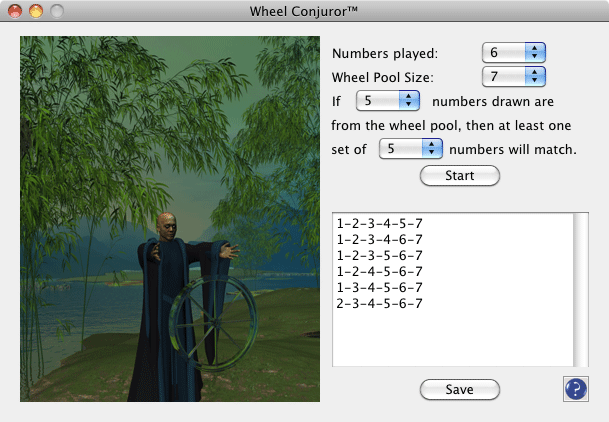
Figure 7.
Here is the Wheel Conjuror function, which allows you to you generate your own wheels. [Mac OS X Snow Leopard screenshot]
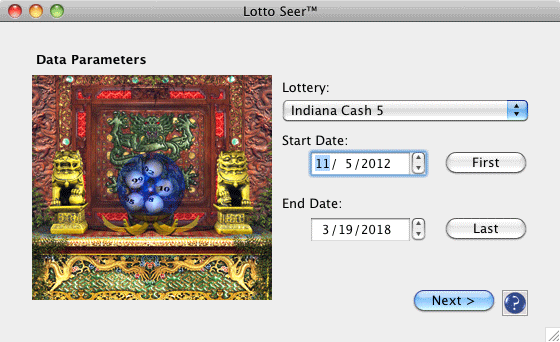
Figure 8.
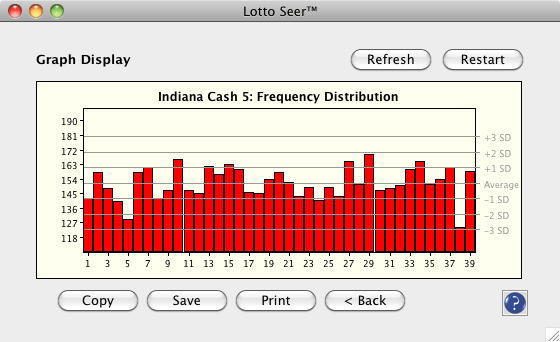
Figure 9.
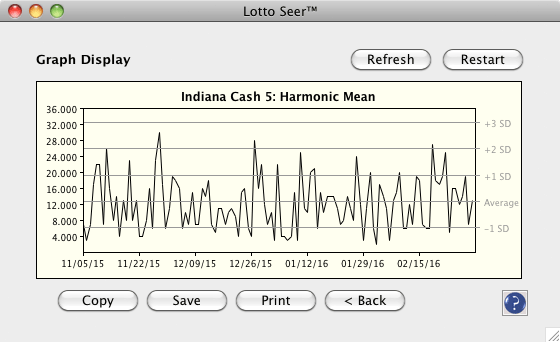
Figure 10.
This are screenshots from Lotto Sorcerer's powerful Lottery Seer™ tool. It allows you to chart and graph your lottery's drawing data. You can invoke the Lotto Seer by using Lotto Sorcerer's menu item "Utilities > Lotto Seer". [Mac OS X Snow Leopard screenshot]
Just choose the lottery, the starting and ending dates for the period you want to analyze, then click the Next button.
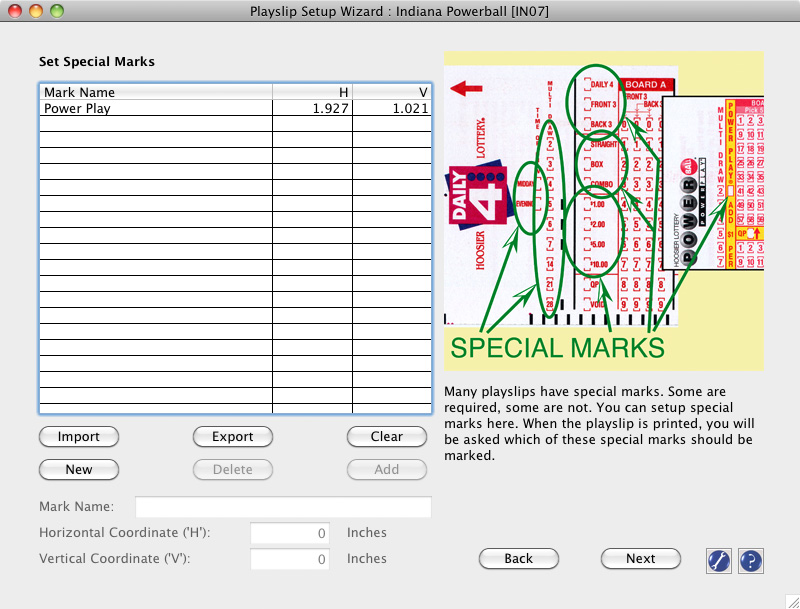
Figure 11.
This is the Playslip Setup Wizard. This lets you setup your own playslip. It allows you to program in "special marks", as shown above, or even override settings. [Mac OS X Snow Leopard screenshot]
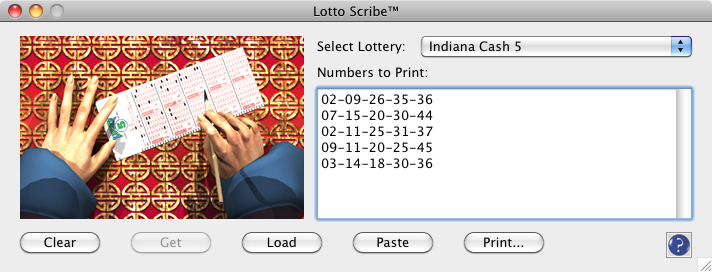
Figure 12.
This is Lotto Scribe™. Once upon a time, it was an immensely popular standalone product that we sold almost 30 years ago. Today, it is fully incorporated within Lotto Sorcerer. This lets you print onto playslips. [Mac OS X Snow Leopard screenshot]
Virtual Lottery Setup Wizard
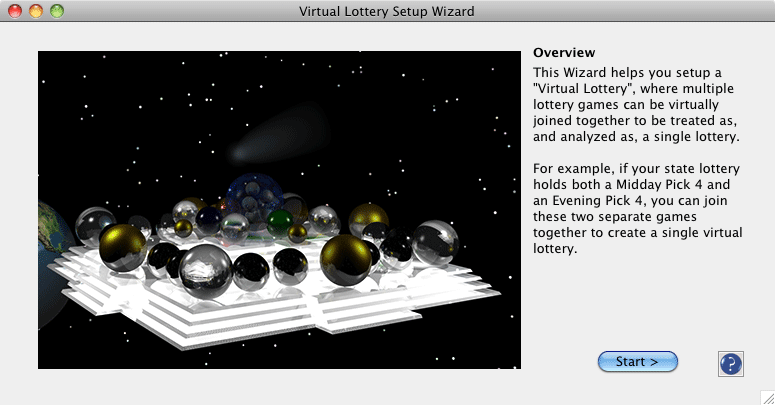
Figure 13.
This is the Virtual Lottery Setup Wizard, which introduces the concept of "virtual lotteries", where separate lotteries can be virtually joined together to be treated as a single lottery. [Mac OS X Snow Leopard screenshot]
Note: the image is inspired by, and is an homage to, the early computer animation, Mandala1983, by Masaki Fujihata, shown at SIGGRAPH Detroit in 1983.
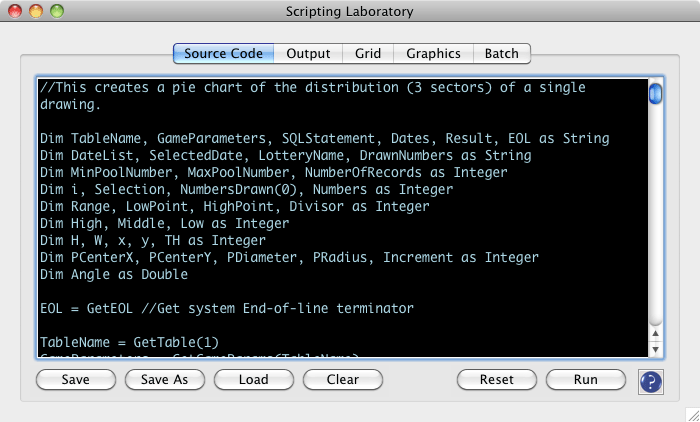
Figure 14
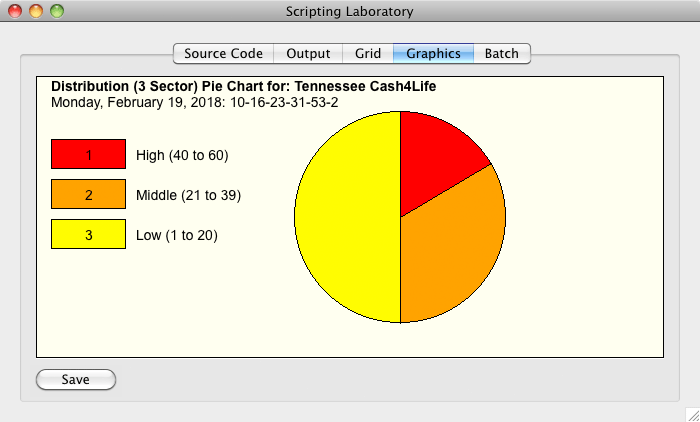
Figure 15.
This is Lotto Sorcerer's powerful Scripting Laboratory, which uses an easy-to-learn enhanced BASIC language (similar to Microsoft's Visual Basic) to allow you to create your own programs. You can automate Lotto Sorcerer, create your own filters, functions, charts, graphs and much more. In fact, you can create programs that do not have anything to do with lotteries, or even gambling: one Lotto Sorcerer user is an amateur astronomer who reports that he uses Lotto Sorcerer's Scripting Laboratory to write programs for use in his hobby.
Over 200 built-in functions and commands. Figure 13 shows the source code of a sample script included with Lotto Sorcerer, and figure 14 shows the output of that same script. You can also run batches of separate scripts. [Mac OS X Snow Leopard screenshot]
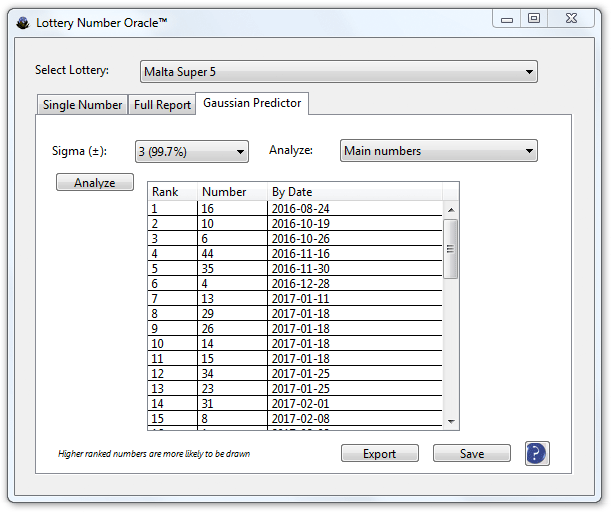
Figure 16.
Lotto Sorcerer's Lottery Number Oracle™ tool can analyze each number and predict, using Gaussian distribution, the chances the number will be drawn by a specific date. [Windows 7 screenshot]
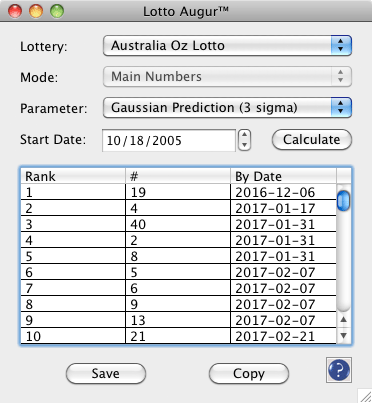
Figure 17.
Lotto Augur™ is a tool within Lotto Sorcerer that can display and sort various stats from lotteries: Numbers Frequency; Most Common Numbers; Least Common Numbers; Most Overdue Numbers; Most Common Pairs; Most Common Consecutive Pairs; Most Common Triplets; Most Common Consecutive Triplets; Odds vs. Evens and Gaussian Prediction (three modes). [Mac OS X Snow Leopard screenshot]
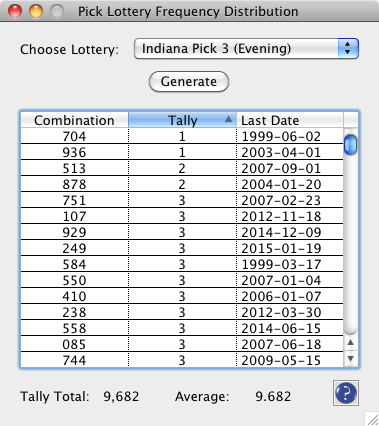
Figure 18.
Pick Lottery Frequency Distribution can show you which specific combinations of Pick 1, Pick 2, Pick 3, Pick 4 and Pick 5 numbers have never been drawn, the draw counts for all other combinations, and when the combinations were last drawn. [Mac OS X Snow Leopard screenshot]
|